The average employee spends about 7 hours a week on presentations. Nearly a full workday. Almost 40% of that time goes to formatting.
(Source: empower® / Nielsen PowerPoint study)
AI presentation tools promise to fix this. They can build a deck in 10 seconds.
And yet, you still spend the next hour fixing it.
the structure
the wording
entire sections
And suddenly, you’ve spent more time editing than if you started from scratch.
These one-click tools are not as helpful as you thought. There is no one-click miracle.
Most people are asking AI to do all three things at once:
research
writing
formatting
That’s where it breaks.
I ran into the same problem so I changed how I use AI for presentations. This workflow now saves me hours every week, and more importantly, the output actually feels like mine.
Is there a better way?
My work involves presentations, reports, and notes regularly. I wanted to spend more time thinking clearly and less time fighting formatting, so I changed my pipeline. It worked well enough that I was asked to run a training for SCB 10X and SCBX R&D this month.
This is what I taught.
The shift is not about which tools to use. It is about separating three things most people mix together: research, content, and presentation.
Separate those layers and everything gets easier. Not just for slides, but for any kind of knowledge work: strategy reports, newsletters, research documents.
Presentations are where most people feel the pain first, so that is where we will start.
The Problem with AI Slide Tools
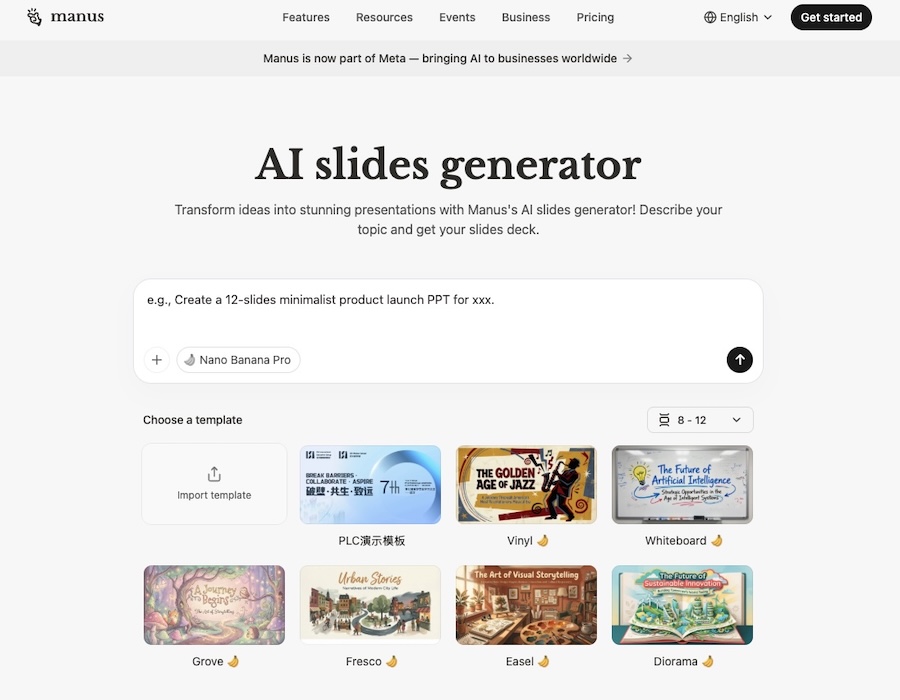
Gamma, Beautiful.ai, Manus’s Slide Generator, Canva AI. These tools are impressive at first glance. You describe what you want in a single prompt and… boom, the presentation is done.
But they don’t just handle the formatting layer. They take over the content layer too.
AI slide tools don’t format your ideas. They replace them. You get back something that looks right, sounds plausible, and isn’t quite yours. Then you spend the time you saved editing someone else’s thinking into your own.
Content is the brain. I’m not lending mine out.
The 3-Layer Workflow I Use (Step-by-Step)
Stop mixing research, drafting, and formatting in one messy file—you’ll never feel finished. Think of your work as a pipeline. Break it into steps and be clear about each stage.
Most people try to do all three at once. That’s why it drags.
Instead, I recommend structuring your work in layers:
Step 1: Define your ground truth (don’t open slides yet)
Before writing anything, there are two questions to answer before heading straight to a slide template.
1.1 — What do you want your audience to know, feel, or do by the end?
This is goal-setting. Not “I need to present about X” but “After this presentation, my audience should understand Y and be ready to decide Z.” It sounds basic. But without a clear answer here, all the research and content in the world will end up as a slide deck that goes in every direction at once.
Write this down. It becomes the prompt for everything that follows.
1.2 — What information or evidence do you actually need to support that goal?
Once you know what the presentation needs to achieve, you can scope your research properly and avoid collecting everything that seems vaguely relevant. The goal is not more information. It is relevant information and stronger evidence.
This is where tools come in. Not just to search, but to summarize and synthesize information into something you can actually use. This is where AI becomes valuable. The manual process takes time. AI compresses it.
Examples of tools worth using at this stage:
- Perplexity is good for fast, cited searches. When you need to get grounded quickly without opening twenty browser tabs.
- Deep Research (available in ChatGPT and Gemini) handles deeper dives. When the topic is complex and you need synthesis across many sources, not just a quick summary.
- NotebookLM is what I often use when I have specific documents, videos, or sources I trust. Load them in, ask questions, let it reason across them. The outputs are grounded and traceable in a way that general chat is not.
The output of this layer is ground truth: a clear goal and the right evidence.
Step 2: Think and write outside slides
Once Layer 1 is done, feed all of it to AI: the goal, the sources, the research notes, the argument you are trying to make. Not just a topic name. The full context.
Then work in stages, not in one shot.
Start with an outline. Review it against the goal from Layer 1. Adjust the structure until the flow is right. Then move section by section. Draft, review, edit, repeat.
I am not a passive recipient. I am the editor throughout: redirecting, tightening, correcting tone. The AI is a fast writer. I am the quality gate.
This iterative back-and-forth is what makes the content feel like mine, not like a generic summary someone produced on my behalf.
I have the output of all this work in a Markdown file. Not a slide deck. Not a Word document. A single, clean .md file containing your complete content: arguments, structure, transitions, examples in plain text.
Why Markdown?
Markdown is a lightweight, structured plain text. If you have used Obsidian, Bear, or GitHub, they are all based on Markdown.
Why it matters:
Markdown is AI-friendly and it keeps content independent from formatting. Your entire presentation lives in one compact file instead of being scattered across slides.
It is portable. You can edit it, reuse it, or convert it into any format: slides, PDF, report, or post. Write once, deploy anywhere.
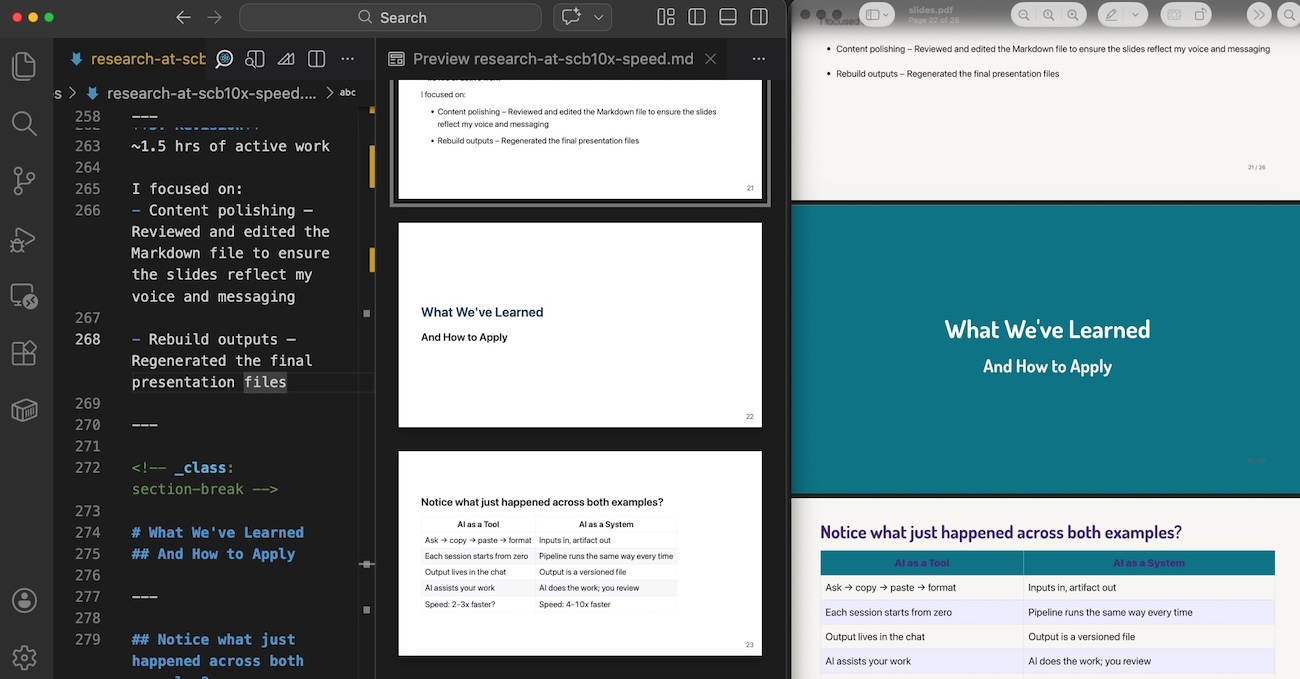
The figure below shows the same content in two forms: Markdown with complete content on the left, and a slide preview on the right.
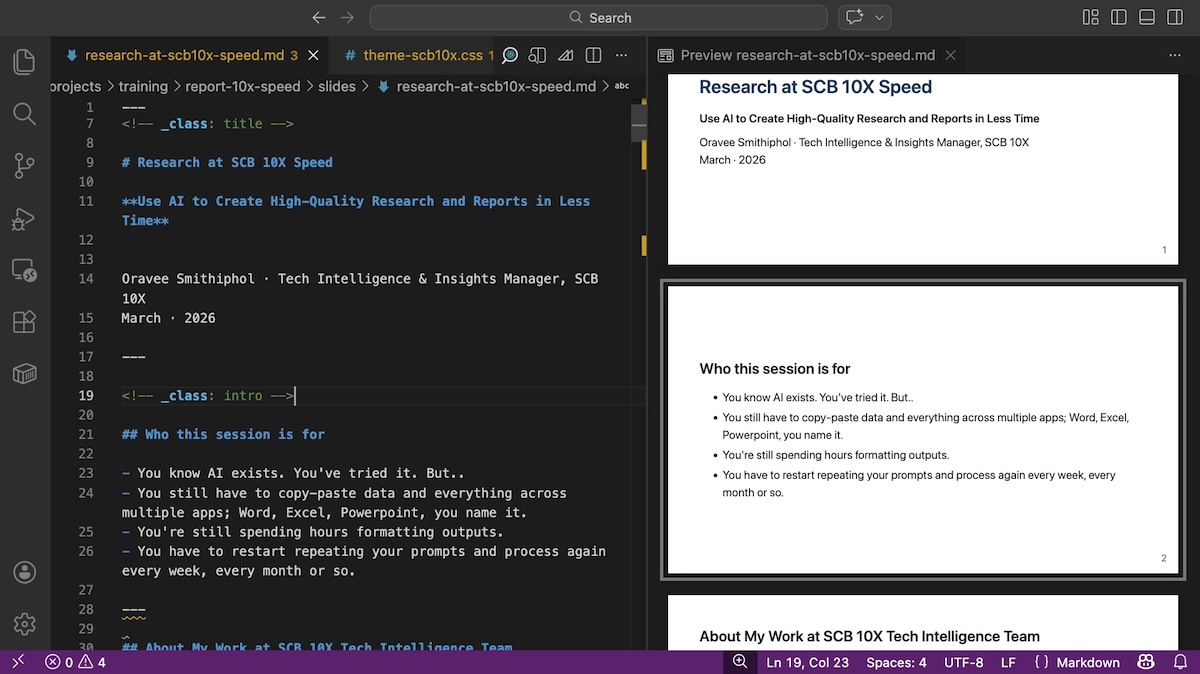
I use VS Code with the MARP framework and plugin here, but you can use any IDE integrated with any AI coding agent. You don’t need coding experience for this. I’ll discuss more in the next section.
Bonus: teach AI to sound more like you
I share a few examples of my own writing with the AI and ask it to match my tone. Past articles, emails, anything that reflects how I actually communicate.
The drafts still need editing, but the gap is much smaller. The difference between AI voice and your voice is real. This is how you close it.
Step 3: Format at the end (not during thinking)
Take the Markdown and render it into whatever format you need.
AI agents (coding or cowork) can build from Markdown into almost any output format today: an HTML web page, a PDF document, a PowerPoint deck. You prompt it, it builds.
I have a preference for web-first. I tend to prefer a web-first approach. Most AI coding tools today are highly optimized for designing and building websites, which makes web-based formats especially reliable. In my experience, the web format consistently produces solid, well-structured outputs.
I typically ask the AI to generate an HTML version with a CSS file for styling. The reason is simple: CSS (a design system described in code) lets you define styles once and apply them everywhere. Colors, fonts, spacing, all set in one place. Every slide or section inherits them. Change one rule and the whole document updates. It is much easier to ensure consistency.
Here is a small example. This is a slice of the CSS from the training presentation I built:
:root {
  --teal: #007f91;
  --dark: #1a1a2e;
  --off-white: #f8f7f4;
}

h1 {
  font-family: 'Dosis', sans-serif;
  color: var(--teal);
}

section {
  background: var(--off-white);
  padding: 56px 72px;
}
About 20 lines of rules. Every slide in the training follows them without any manual formatting.
From there, export to PDF, share a link, or convert to other formats. The formatting work that used to take hours is now mostly automated. The content already exists in Markdown. CSS simply renders it into a consistent visual layer.
Formatting should be the last step. Not where thinking happens.
Below is what the final output looks like after applying the design system.
Bonus: The Glue That Holds It Together
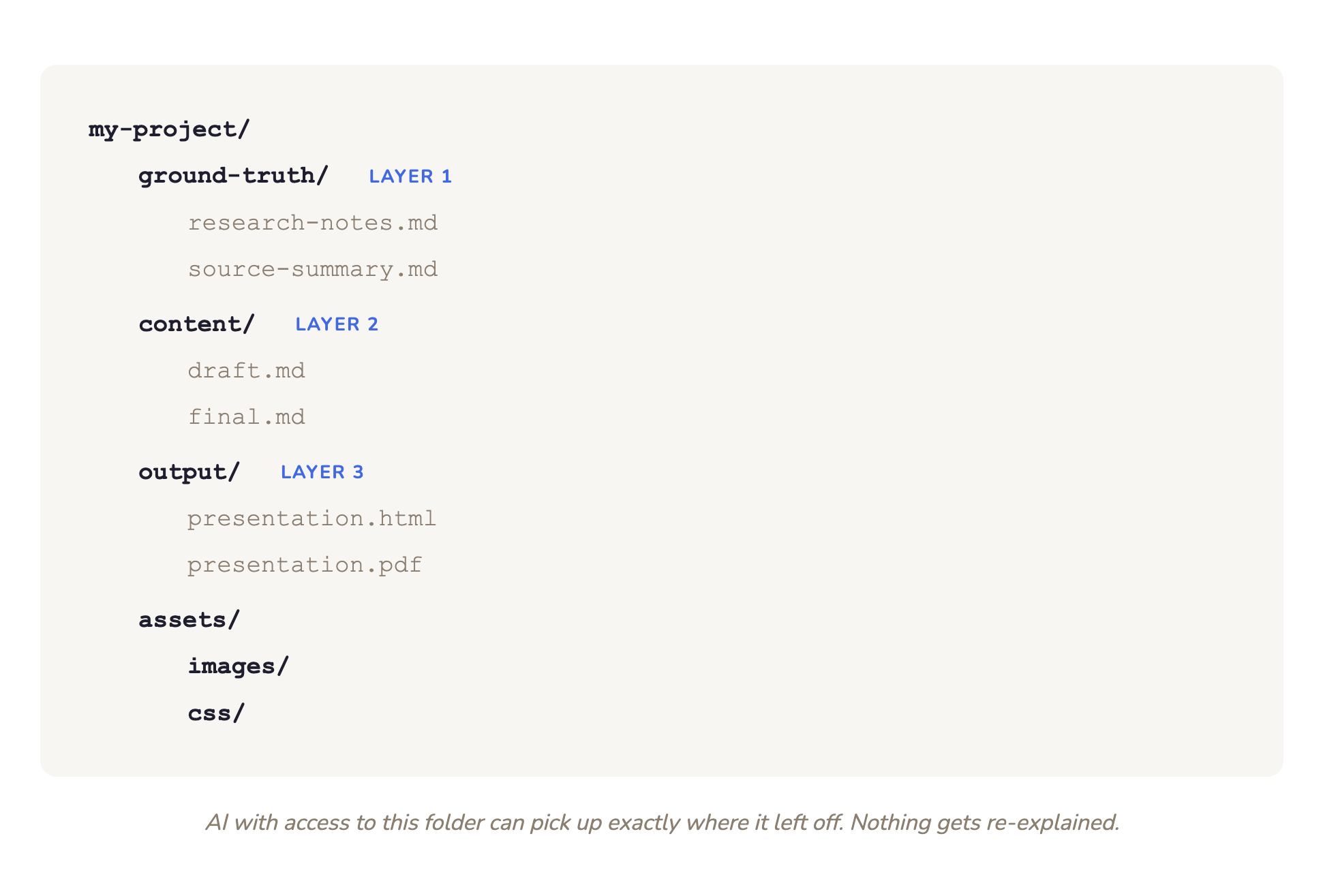
The three layers work because they are all files, all saved in one project folder, and AI has read and write access to that folder across sessions.
A typical folder looks like this:
/my-project/
  ground-truth/
    research-notes.md
    source-summary.md
  content/
    draft.md
    final.md
  output/
    presentation.html
    presentation.pdf
  assets/
    /images
    /css
The AI that helped synthesize sources in Layer 1 can pick up where it left off in Layer 2. The content feeds directly into Layer 3. Nothing gets re-explained. The folder becomes the shared memory.
For people comfortable with coding tools: Claude Code, Gemini CLI, and Codex work exactly this way. They read and write files across a whole project, not just a single chat window.
For everyone else: tools like Claude Cowork and Manus Computer provide the similar capability without touching a terminal. Give them access to a folder, and they can work across it.
What Changes When You Think in Systems
The time allocation shifts. Not just the total time, but where the time goes.
The old pattern: most of the hours go into formatting, slide order, making things look right. The content is developed inside the slides, which means ideas are competing with layout decisions the entire time.
The new pattern: most of the hours go into Layer 1 and 2. The content gets real attention because it is the only thing happening. By the time Layer 3 runs, the hard work is done and the formatting is nearly mechanical with no or very little help from a graphic designer.
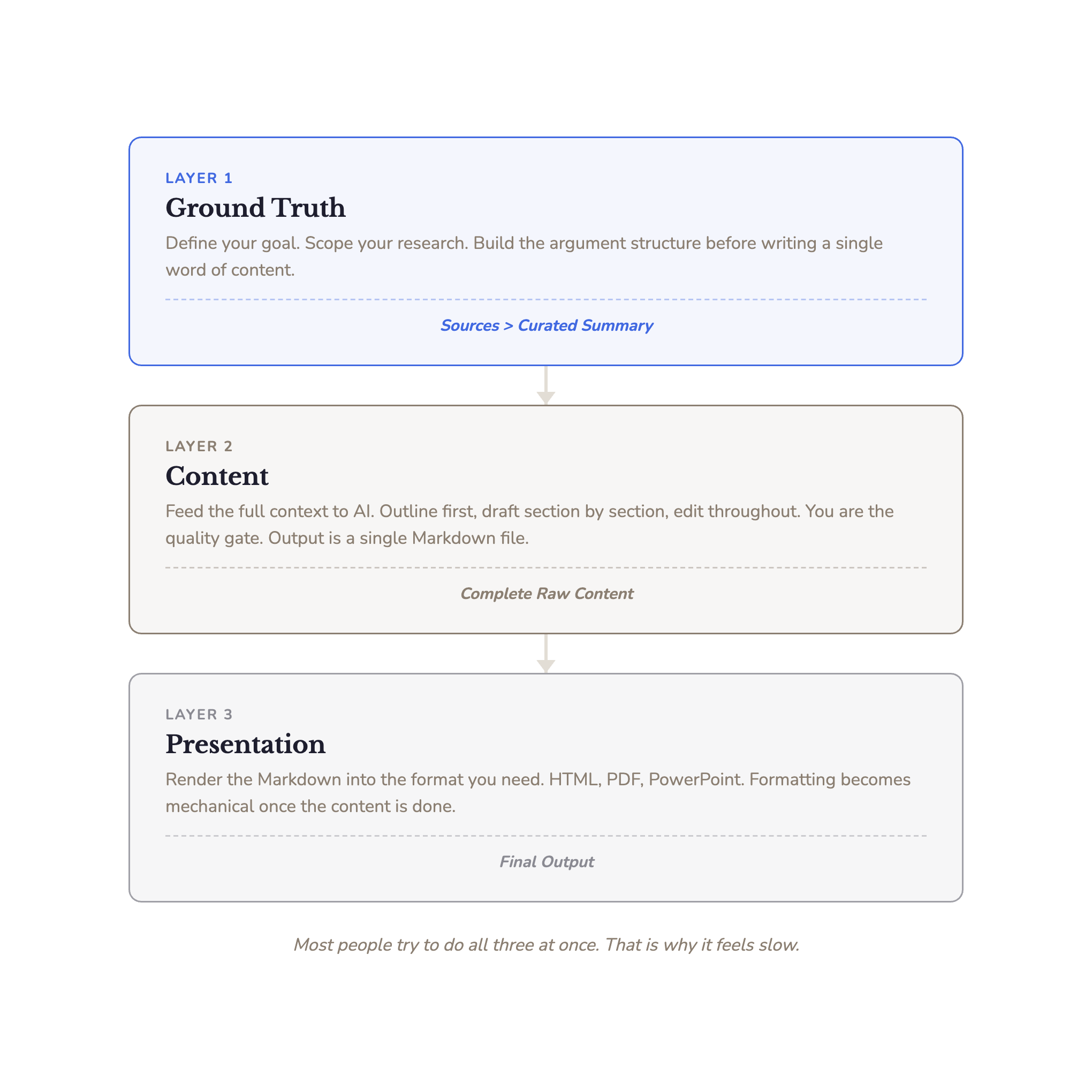
The same architecture runs for my other projects, such as the research-signal newsletter for executive leadership. Raw signals collected during the week, structured content in Markdown, a design template applied at export. Different content type, same three layers. Same time savings at the formatting step, same quality improvement at the content step.
What changed for me, concretely:
- I spend less time fixing slides
- I spend more time thinking clearly
- My outputs are reusable across formats — a deck becomes a report section, a report section becomes a post
- I do not fight AI anymore. I direct it.
You no longer need to be a developer to do this
A year ago, this pipeline required knowing how to run commands in a terminal. That changed fast.
The tools for non-technical users now exist. What takes me a terminal command takes someone else a button click in tools like Cowork. The underlying structure is the same: a project folder, AI with access to it, files that build on each other.
The constraint is not skill. It is the habit of separating what you want to say from how it looks.
This Is What “Running AI as a System” Looks Like
In February I wrote about the gap between AI users and AI power users. The dividing line, I argued, was whether you run AI as a system or use it as a chat interface.
This pipeline is one concrete version of that. A project folder with structured files. AI with consistent access across sessions. Outputs that build on each other layer by layer. That is what “running AI as a system” looks like for one of the most common knowledge-work tasks there is.
If you missed that piece, check it out here.
Wrap It Up
If you’re using AI for presentations and still spending hours fixing slides, try this:
Separate research, content, and formatting
Write everything in one Markdown file first
Let AI handle formatting last
That one shift changed everything for me.
Most people don’t have a presentation problem. They have a thinking problem disguised as a formatting problem.
Separate thinking from formatting. That’s where the leverage is.
So where are you actually spending most of your time right now: thinking or formatting?